How do I upload my product feed to the Merchant Center?
Scheduled Fetches
Uploading your product feed to the Google Merchant Center is a straightforward process. Here’s how to do it:
Step 1: Prepare Your Product Feed
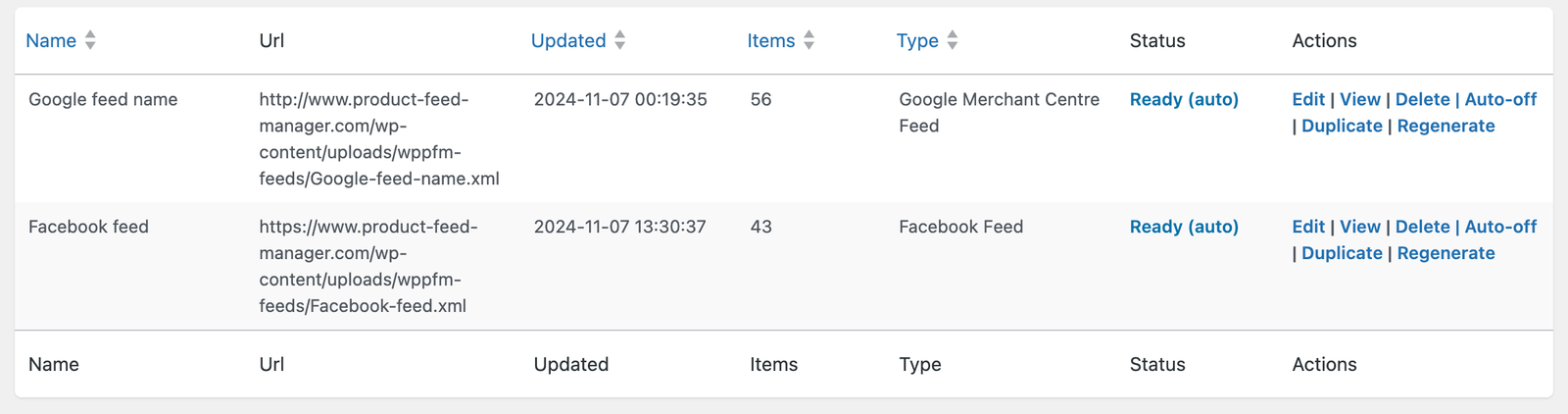
- Use our Product Feed Manager to create your product feed. Once complete, locate the URL of the XML file in the ‘URL’ column of your feed list.
Step 2: Access Your Google Merchant Account
- Log in to your Google Merchant Account to get started.
Step 3: Navigate to Feeds
- Inside your Merchant Center dashboard, go to the ‘Products’ section, then select ‘Feeds’ to manage your product feeds.
Step 4: Add Your Feed
- Click on the blue plus button to initiate adding a new feed to your account.
Step 5: Select Language and Country
- Choose the appropriate language and country for your target market. After selecting the language, the ‘Destination’ option will become available. Here, you can choose where you want your products to appear, such as in Shopping ads or Free Listings.
Step 6: Name Your Feed
- Assign a name to your feed for internal reference. This name is for organizational purposes and does not need to match the file name.
Step 7: Set Up Scheduled Fetch
- Opt for the scheduled fetch option to ensure your feed is regularly updated from the provided URL.
Step 8: Provide Feed Details
- Click ‘Continue’ and then specify a name for your feed file. Ensure the file URL is accurately copied and pasted from your Product Feed Manager.
Step 9: Configure Fetch Settings
- Decide on the frequency of fetch, the specific time for the fetch, and the time zone that applies. If your feed is password-protected, you’ll need to provide login details here.
Step 10: Initiate First Fetch
- After filling in all necessary details, you can opt to ‘Fetch now’ to start processing your feed immediately, though it will automatically process in any case according to the schedule you set.
By following these steps, you’ll successfully upload your product feed to the Google Merchant Center, making your products available for inclusion in Google’s shopping services.
Read more
- Google documentation: Submit feeds via scheduled fetches
Did you find this article helpful? If you have followed the steps but still need assistance or have additional questions, we’re here to help. Please don’t hesitate to open a support ticket.